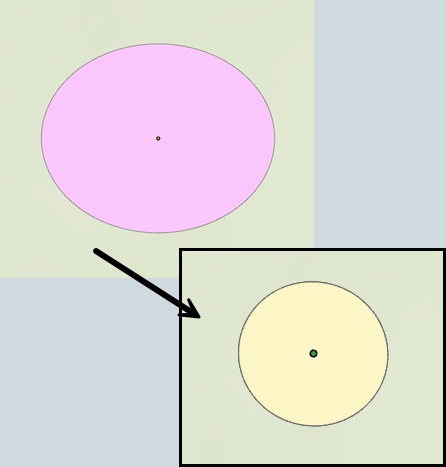
Adding a Buffer When Creating, Copying, or Uploading a Shape
Steps to Create a Buffer
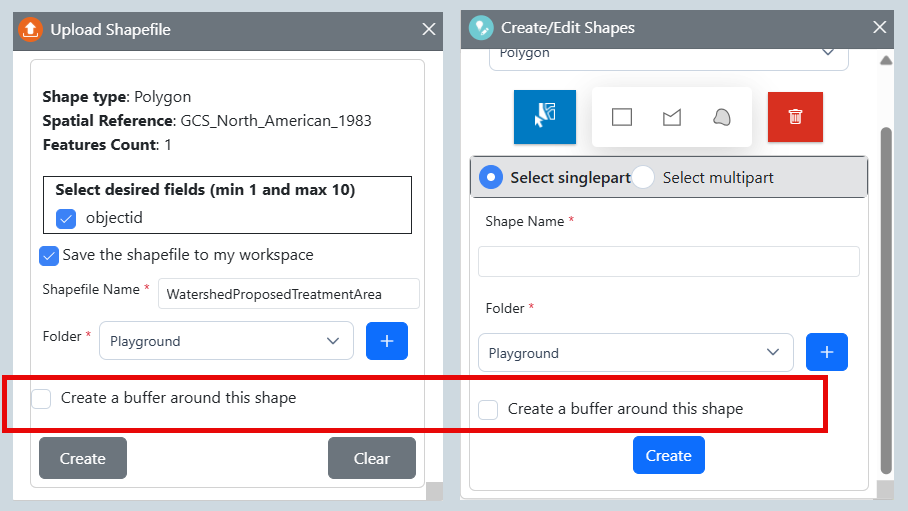
When uploading a shapefile with the Upload Shapes  widget, or creating or copying a shape with Create Edit Shapes
 , you can create a buffer by selecting the "Create a buffer around this shape" option before clicking create. This produces two shapes, one is the uploaded or copied shape, and a second is the buffer.
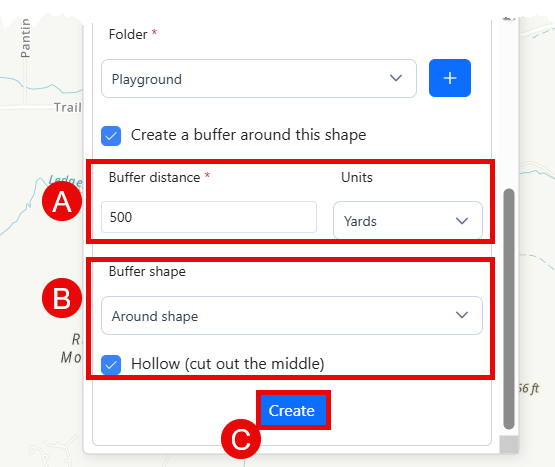
Once the option to "Create a buffer around this shape" is selected, the widget will expand to show buffering options:
-
Specify the buffer distance and units. Options include feet, meters, yards, kilometers, and miles.
-
Specify a buffer shape and whether to make the buffer hollow. For example, selecting "Around shape" and checking the "Hollow" option creates a ring-shaped buffer around the shape. See the buffer options section below for full detail.
-
Click Create.
-
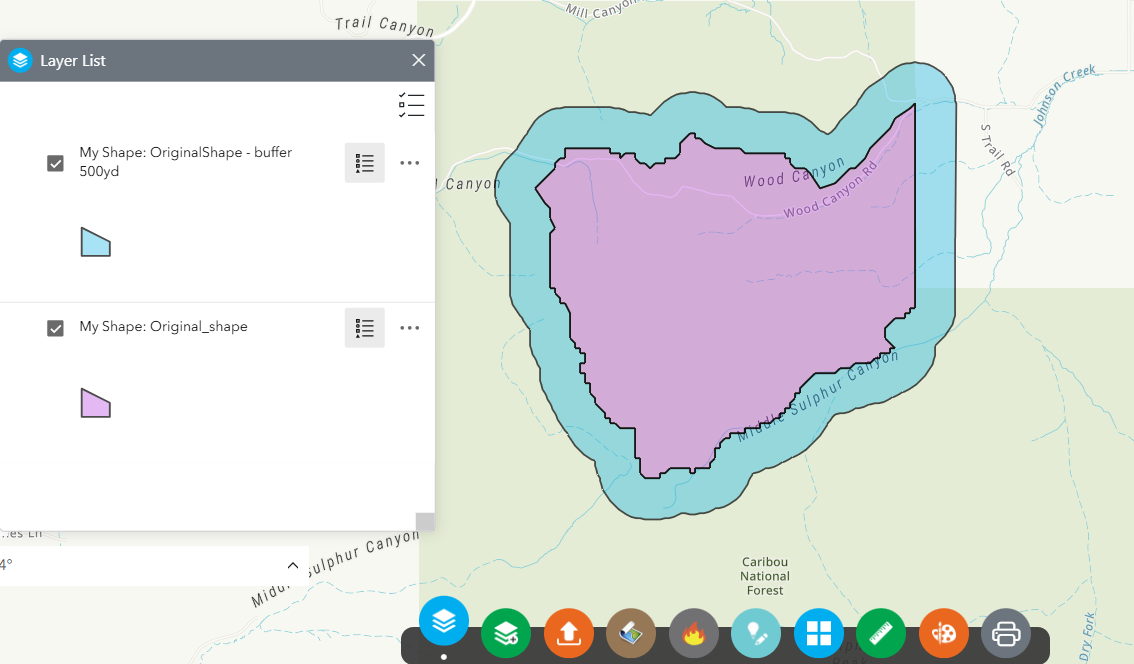
After you click Create, two shapes will be displayed, the original and the buffer.
-
By default, the buffer is stored in the folder as the shape it is created from.
Available Buffer Outputs
This section describes buffer options for:
Polygons
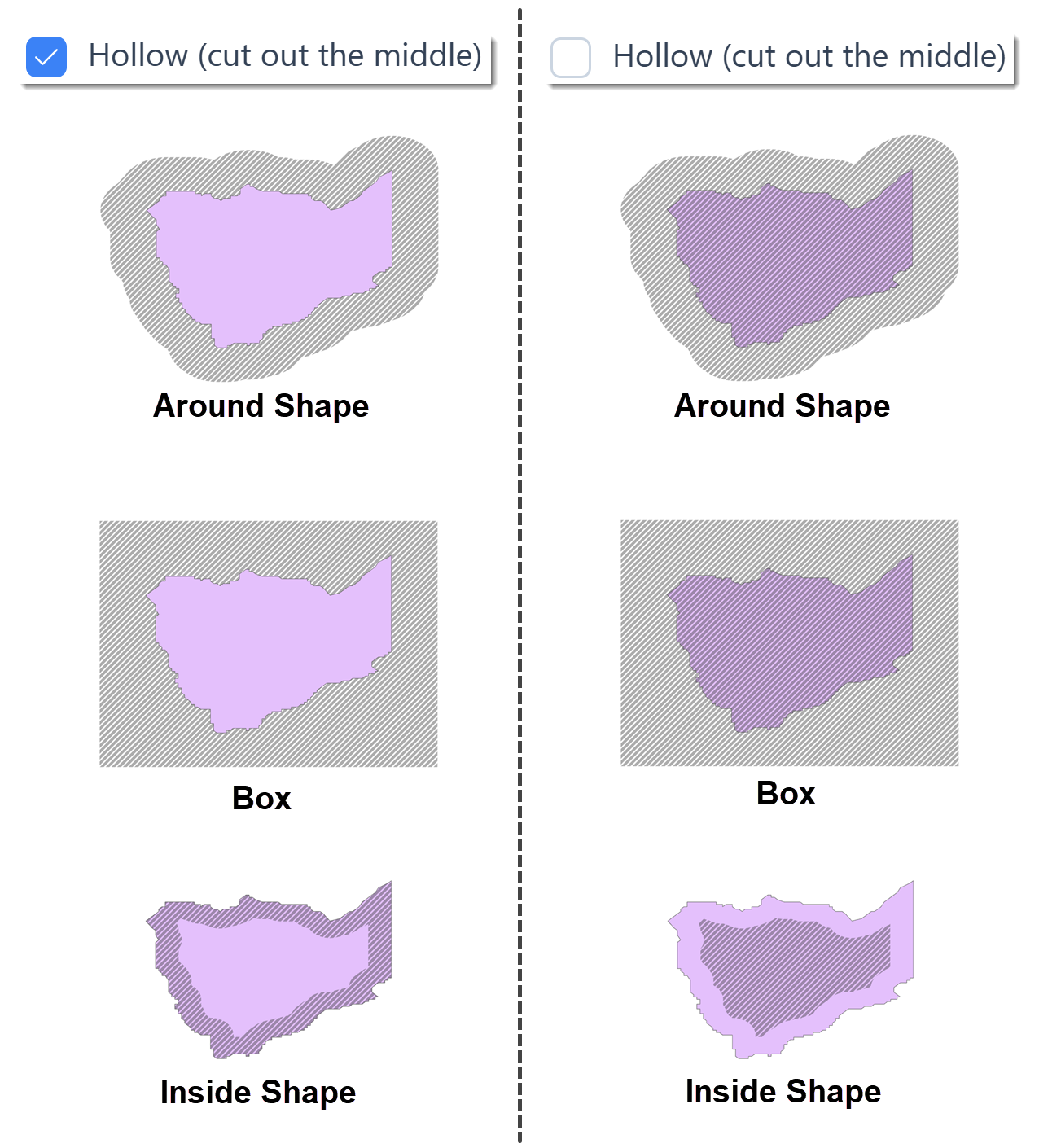
Several buffer outputs are available for polygons that will cover the area outside, inside, or including the original shape. These include:
-
Around shape, "Hollow (cut out the middle)" is selected - Creates a hollow ring around the outside of the shape, following shape contours.
-
Around shape - Creates an area covering the inside of the shape and extending outward a specified distance.
-
Box, " Hollow (cut out the middle)" is selected - Creates a rectangular area around the outside of the shape.
-
Box - Creates a rectangular area covering the inside of the shape and extending outward a specified distance.
-
Inside Shape, "Hollow (cut out the middle)" is selected - Creates a hollow ring around the inside of the shape, following shape contours.
-
Inside Shape - Creates an area inside the shape that ceases at a specified distance from the outer shape contours.
Examples of each of these, with the resulting buffer displayed as a hashed area, are shown in the diagram below.
Lines
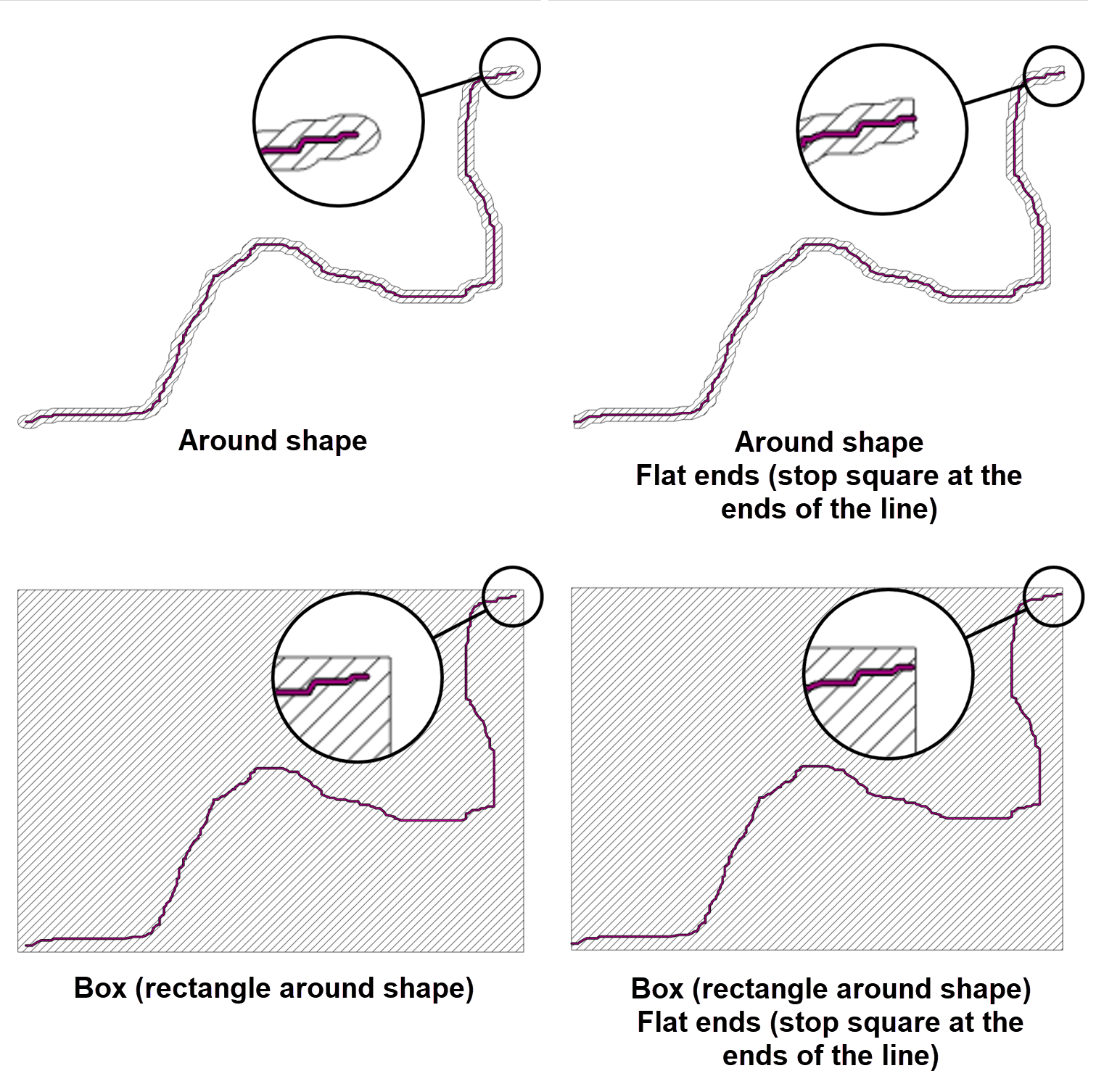
Buffer outputs available for lines include:
-
Around shape - Creates a polygon around the entire line following the line contours, including the ends of the line.
-
Around shape and "Flat ends" option selected - Creates a polygon following the line contours, the polygon ends flush with the end of the line.
-
Box (rectangle around shape) - Creates a rectangular polygon around the entire line, including the ends of the line.
-
Box (rectangle around shape) and "Flat ends" option selected - Creates a rectangular polygon around the entire line, the polygon ends flush with the end of the line.
Points
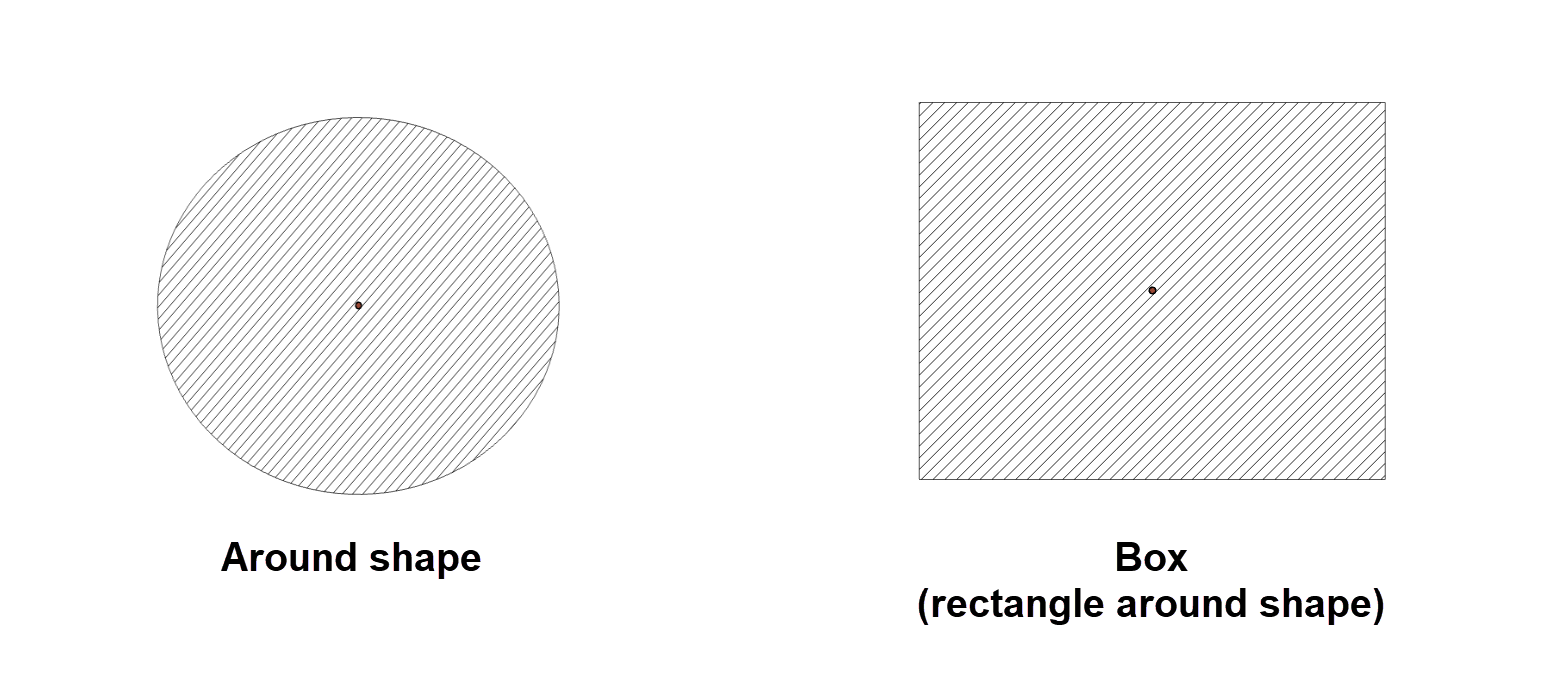
Buffer outputs available for points include:
-
Around shape - Creates a circular polygon around the point.
-
Box (rectangle around shape) - Creates a rectangular polygon around the point.
Tip: If your buffer looks different when downloaded and viewed in ArcPro, check the projection for your shape and your map.