Get Coordinates in Map Studio
The Get Coordinates widget in Map Studio allows you to quickly obtain coordinates for a point on the map, or navigate to a specific location using coordinates you input. Supported coordinate notations include:
-
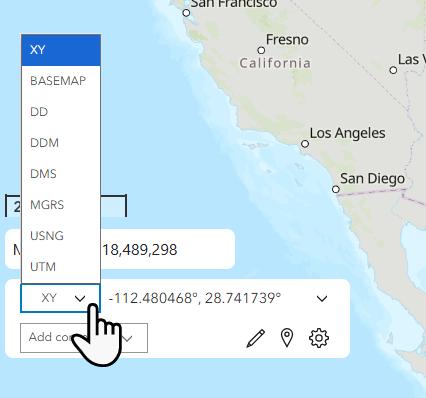
BASEMAP—Displays x,y coordinates in the coordinate system and units used by the current basemap.
-
DD - Decimal Degrees
-
DDM - Degrees Decimal Minutes
-
DMS - Degrees Minutes Seconds
-
MGRS - Military Grid Reference System
-
UTM - Universal Transverse Mercator
-
USNG - US National Grid
-
XY - Longitude and Latitude
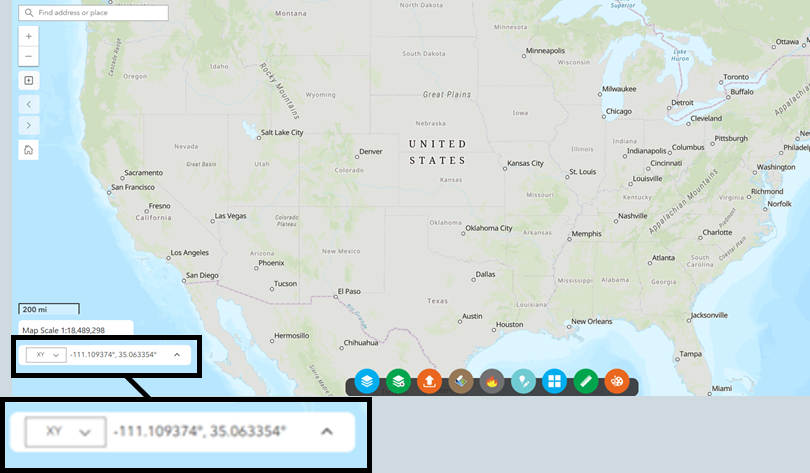
View Coordinates on the Map
-
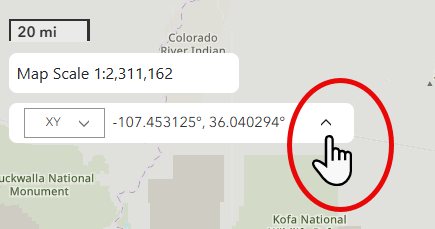
Click the up arrow in the right to view options.
-
Select the desired coordinate notation from the dropdown menu.
-
Click the Capture
 icon. The mouse cursor will now appear as a cross.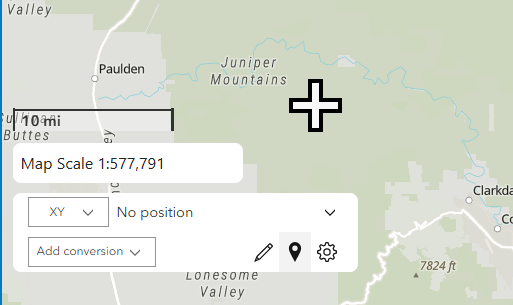
-
Mouse over your point of interest and left-click the mouse to lock in the coordinates.
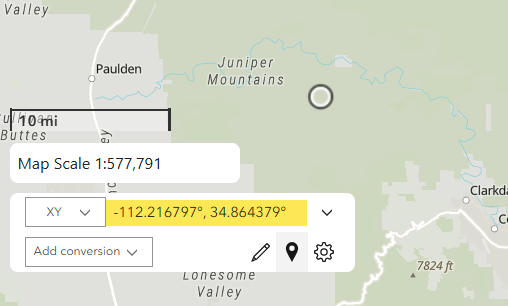
-
(Optional) To copy the coordinates, hover over the coordinates to display the copy
 icon and then click the copy icon.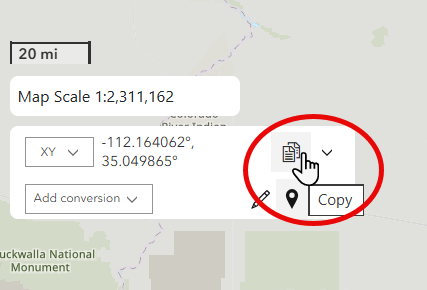
-
(Optional) To see the coordinates in another notation, click the Add conversion option in the bottom left. You may perform this action more than once to see multiple notations.
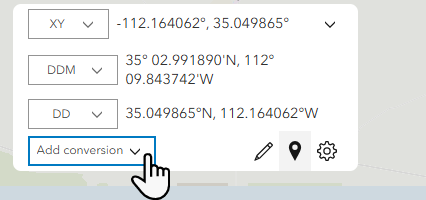
-
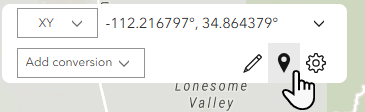
When finished, click the Capture icon again to return the mouse cursor to normal.
Navigate to a Specific Coordinate on the Map
-
Click the up arrow in the right to view options.
-
Select the desired coordinate notation from the dropdown menu.
-
Click the Input Coordinate
 icon to see the input coordinate field.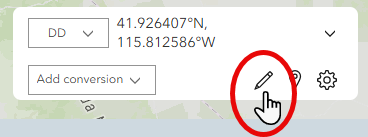
-
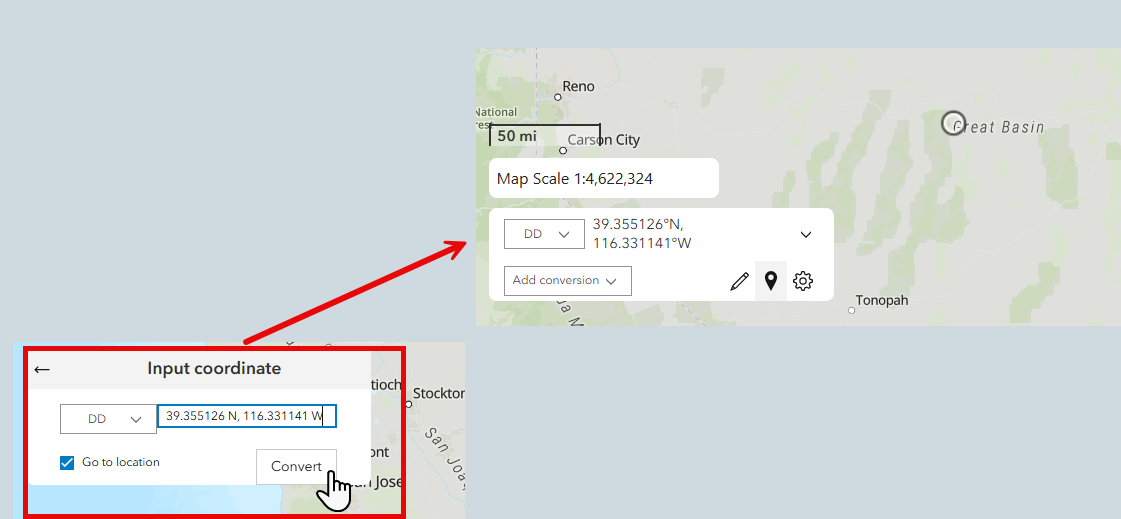
In the input coordinate field, enter the desired coordinates and check the box next to "Go to location."
-
Click Convert to be directed to that location on the map.
Tip: See ESRI's guidelines specifying coordinates for coordinate notation formats.