Print Map
Important! Print Map is being phased into Map Studio through the Summer of 2026. Some features are still in development.
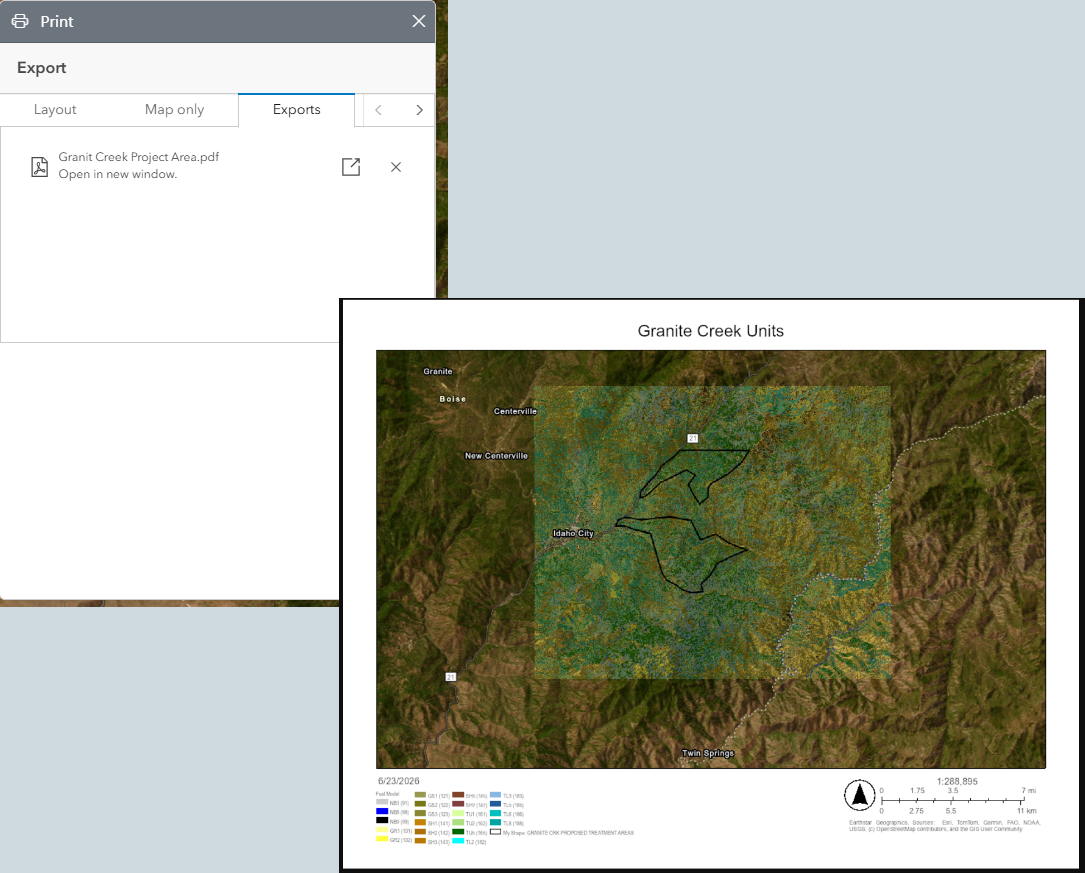
The Print Map  widget allows you to print your map studio display in various formats including PDF, PNG, JPEG, GIF, EPS, and SVG. You can print the map layout or only the map. You can print the map with scale, legends, and title (using the Layout tab) or an image of the map only (using the Map Only tab). When the print file is ready for download, it will become available in the Exports tab.
Print a Map using the Layout Tab
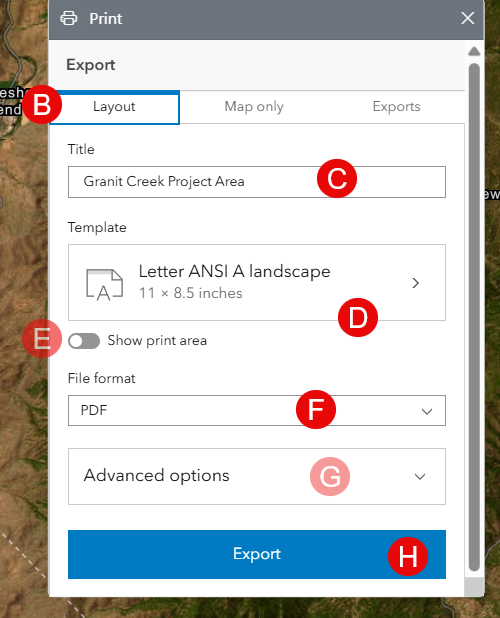
The map layout includes the document title, a scale bar, and the date. To create a printer-friendly map layout, complete the following steps:
-
From Map Studio, with your map open, click the Print Map
widget. -
In the widget, select the Layout tab.
-
Type a title for the map document.
-
From the Template dropdown menu, choose a layout template.
-
(Optional) Toggling on "Show print area" will show a preview of your print area. You may zoom in or out to adjust how much of the map will be included in the print area.
-
Select a file format for your map. File types include PDF, PNG8, PNG32, JPG, AIX, GIF, EPS, SVG, SVGZ, and TIFF.
-
(Optional) You may set the following in the Advanced options:
-
Set the map scale.
-
Include author and copyright information.
-
Change the dpi of the map.
-
Include a map legend.
-
Include a north arrow.
-
-
Click Export to create the map file.
-
Exported files are listed in the Export tab. The exported files will remain available for a short time, they are removed when you close the map or refresh your browser.
Print only the map
To create a printer-friendly document of only the map, complete the following steps:
-
From Map Studio, with your map open, click the Print Map
widget. -
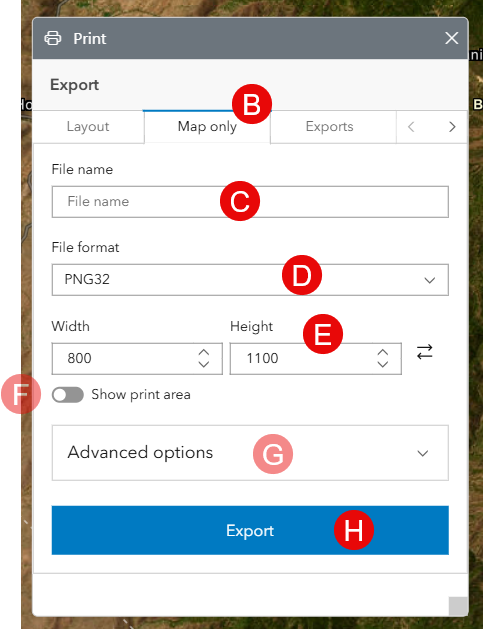
In the widget, select the Map Only tab.
-
Type a file name for the map document.
-
From the File format dropdown menu, choose the file type to export. File types include PDF, PNG8, PNG32, JPG, AIX, GIF, EPS, SVG, SVGZ, and TIFF.
-
Provide a width and height for the map document.
-
(Optional) Toggling on "Show print area" will show a preview of your print area. You may zoom in or out to adjust how much of the map will be included in the print area.
-
(Optional) You may set the following in the Advanced Options:
-
Set the map scale.
-
Change the dpi of the map.
-
Include a basemap attribution.
-
-
Click Export to create the map file.
-
Exported files are listed in the Export tab. The exported files will remain available for a short time, they are removed when you close the map or refresh your browser.