Steps to set fuel moisture conditioning are outlined below, including:

Do Not Condition (Use Initial Fuel Moistures)
This choice means IFTDSS does not condition fuels, it uses the initial fuel moistures across the entire landscape. This is the default selection in most model inputs in IFTDSS.
Condition (Select a Classified Weather Stream)
This option uses an automatically generated weather stream for extreme conditions (based on static pyrome data), to use this option:
-
Select Condition (Select Classified Weather Stream).
-
In the Pick Weather Stream input, select Extreme. Currently, Extreme is the only option available in the dropdown menu.
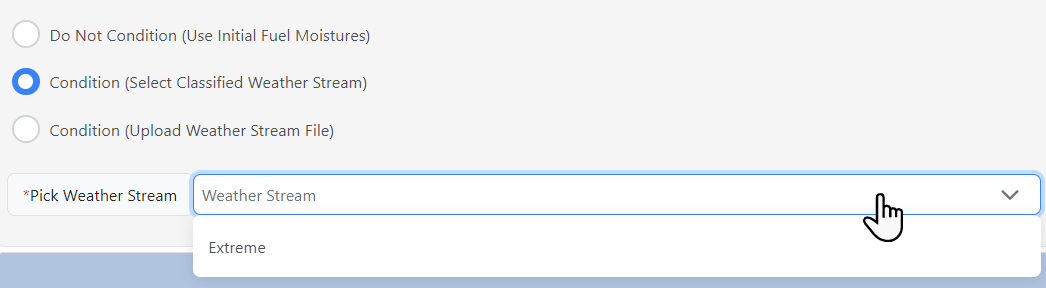
Note: Extreme conditioning files exist for most of the Western United States but have yet to be developed for Eastern Areas. This is in part due to complexities associated with defining a conditioning period date in areas where much of the landscape is dominated by deciduous forests.
Condition (Upload a Weather Stream File)
This option conditions dead fuels based on a weather stream file you upload, and dates and times that you specify. To use this option:
- Select Condition (Select Classified Weather Stream).
-
Click the Upload button and select a .wxs file from your local machine. To see steps on creating your own weather stream file, see the weather stream file creation topic.
Important! If an .wxs file is imported into IFTDSS it must meet the following requirements to run successfully:
- Data must be hourly format (each row representing one hour).
- Data must be in chronological order.
- Data may only have gaps of 3 hours or less.
- A day is defined as a 24 hour period, it doesn’t need to be midnight to midnight.
- User can’t upload less than 1 day of data.
- User can only upload 31 days of data.
- User can condition for 1 - 7 days.
- Select a start date from the dropdown menu on which the conditioning period begins.
- Enter a time (in 24 hour hhmm format) on which to start and end conditioning.
-
From the Number of days to condition dropdown menu, select a period for fuel conditioning, up to 7 days.
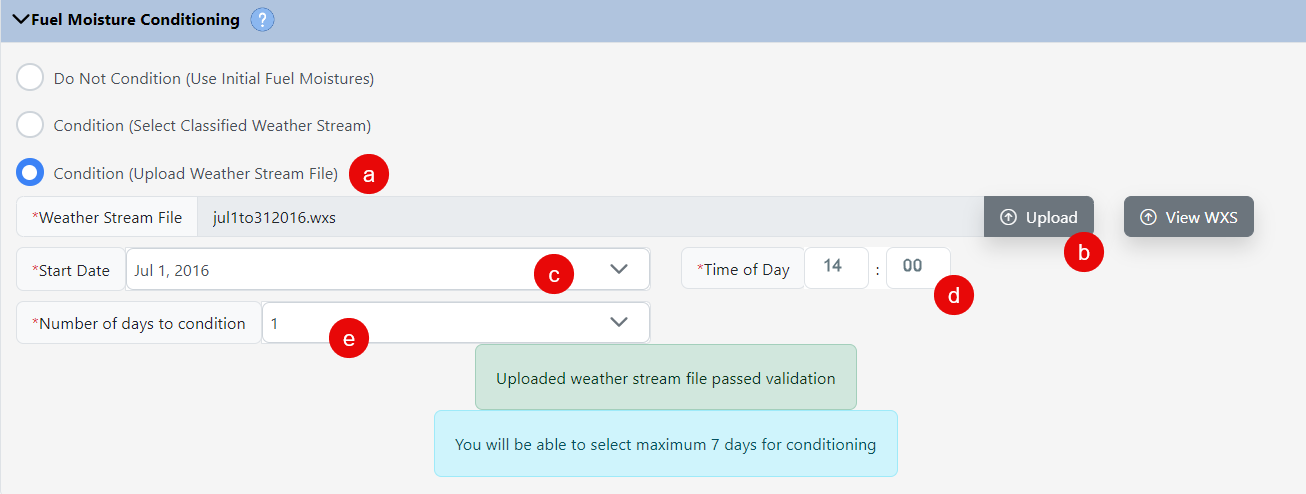
Important! The conditioned fuel moistures at the end of the conditioning period (Start date/Time of Day plus Number of days to condition) will be the fuel moistures used in the fire behavior calculations.
Condition (FEMS Weather Stream)
IFTDSS conditions dead fuel moistures using a weather stream from your weather station of choice using the Fire Environment Mapping System (FEMS), to use this conditioning option:
-
Select the Condition (FEMS Weather Stream) option.
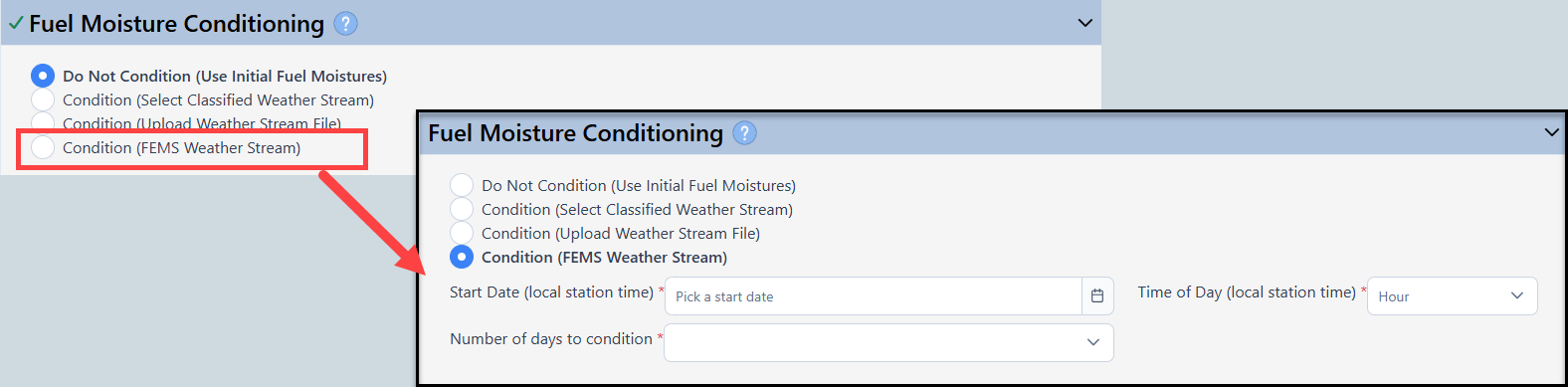
-
Pick a start date and time of day. Day and time should be in the timezone in which the station is located.
-
Specify the number of days to condition, up to seven. After a few seconds of processing, a green message will appear in the bottom of the inputs field that confirms the data is ready.
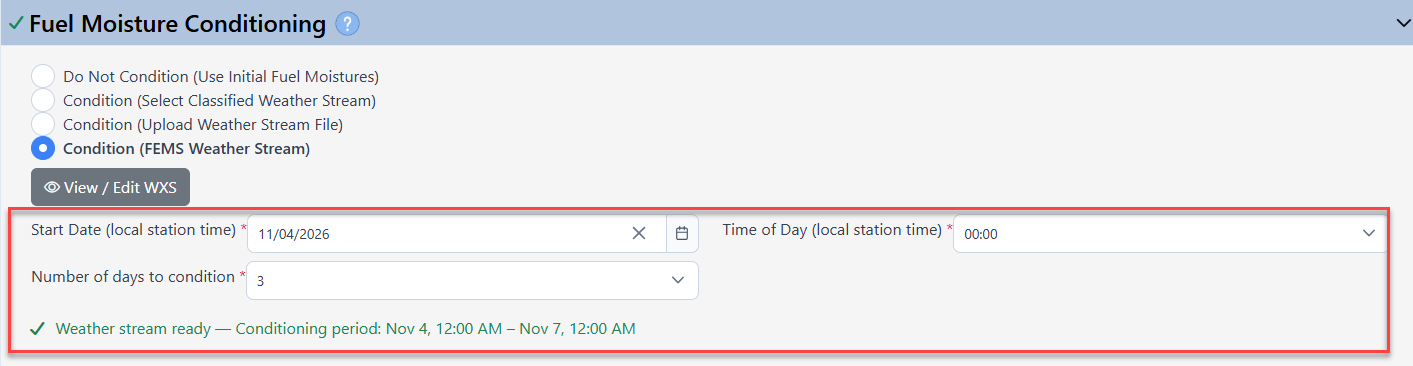
This is all that is required to use a FEMS weather stream; however, if you prefer to view or edit the FEMS values this can be done following the steps below:
-
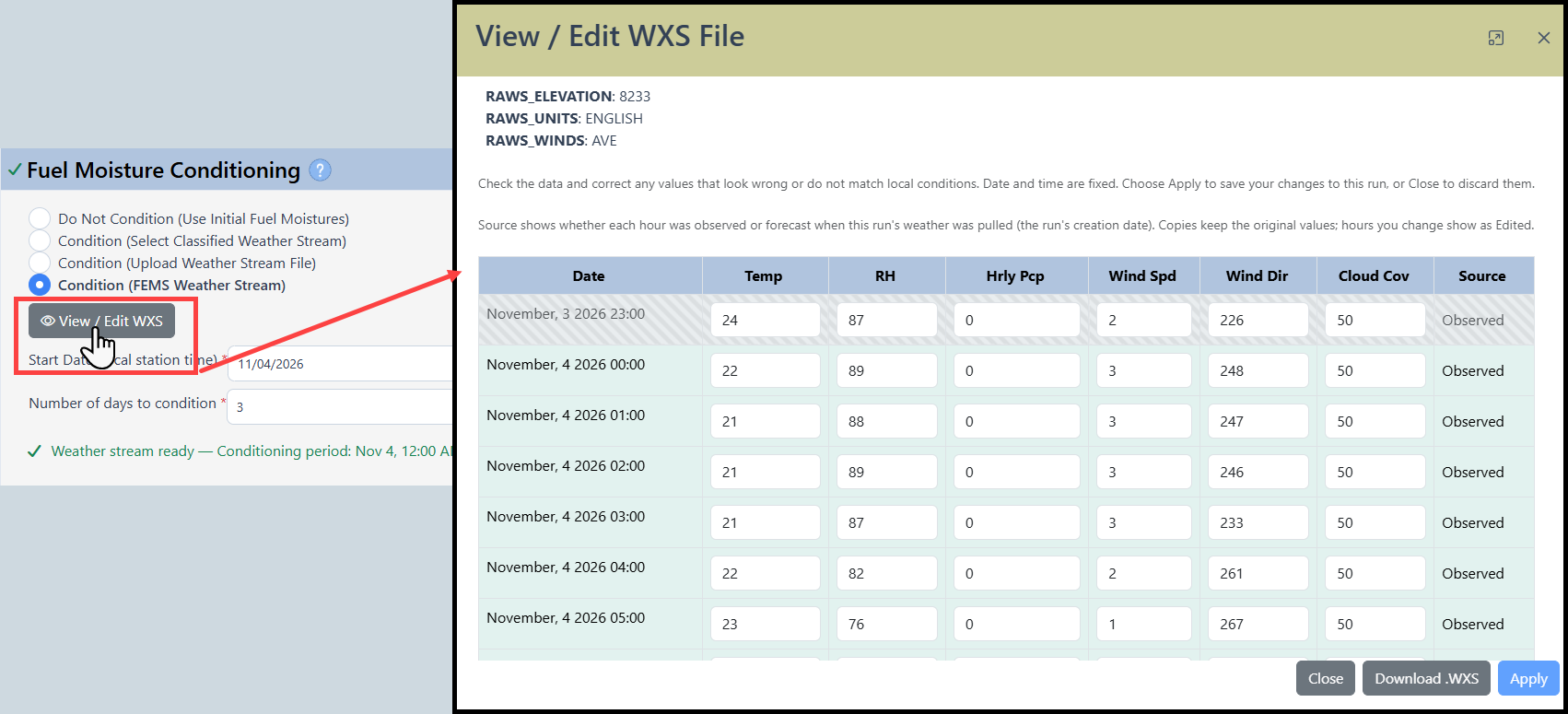
After the data generates, click View / Edit WXS to see a summary of your weather stream data, or make changes to the data manually.
-
Note the Source column in the right specifies whether data is observed by the RAWS (if past dates are selected), or forecasted (if future dates are selected).
If edits to these values are made during this session, you will see the original value listed under the field and the Source column will end with "edited". For observed values, any edits you make will be noted in the source column, even when the run is copied and re-run.
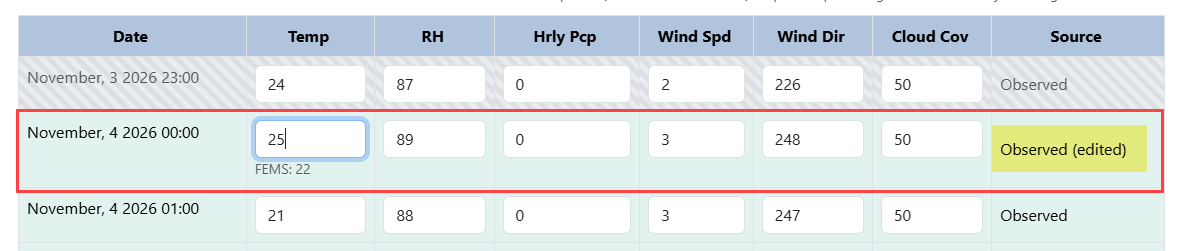
Important! Whether you use forecasted or observed values, the conditioning values used for the model run will always be the values displayed in the WXS fields. For example in the screenshot above, November 4 2026 at 00:00, the temperature used will be "25." The notations on edits are simply there for your reference.
The Source column is under development and currently displays notations as follows when forecasted values have been used:
-
If forecasted values are edited and the model is run and later copied - the edited values will persist but the edit will not be noted in the Source column.
-
If a completed run using forecasted values is copied on a later date when observed valued have become available - the original values will persist but the source column will note they have been edited. In this scenario, 'edit' indicates the values being used differ from what is on record as "observed" by the weather station.
-
It is important to remember the conditioning values used for the model run will always be the values displayed in the WXS fields. This can also be verified by downloading a completed run and inspecting the .inputs file, which shows all conditioning values used for the model run.
-
-
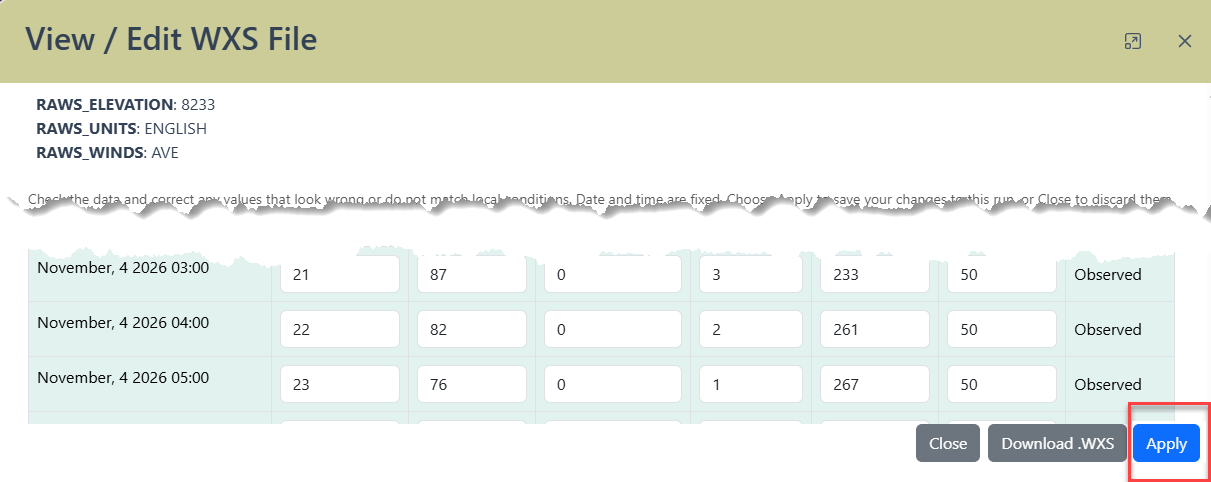
In the bottom right, use the Apply button to use these values to condition the fuel moistures in the model run.
-
Once applied, the View / Edit WXS File dialogue will close so you can continue populating other model input fields.
-
Note: If forecasted conditioning values are used and the landscape is later copied after the forecast date, the Source column will change from "Forecasted" to "Observed"